
Getting started
First-run setup
Section titled “First-run setup”The first time you open Ingle in a browser, it takes you to a one-off setup page. You:
- Name the household, for example “The Parkers”.
- Create the first adult: your name, a colour and an emoji, your email and a password (at least 10 characters), and a PIN of 4–6 digits.
- If you’re on the wall tablet, tick Use this device as the household display and give it a name, such as “Kitchen”.
The email and password are for managing Ingle from your phone or computer. The PIN unlocks admin on the household display, so the kids can’t change the settings.
Admin is the ⚙︎ button at the bottom of the board. On a display, tap it, pick yourself and enter your PIN.
Adding people
Section titled “Adding people”Go to Admin › People › Add someone.
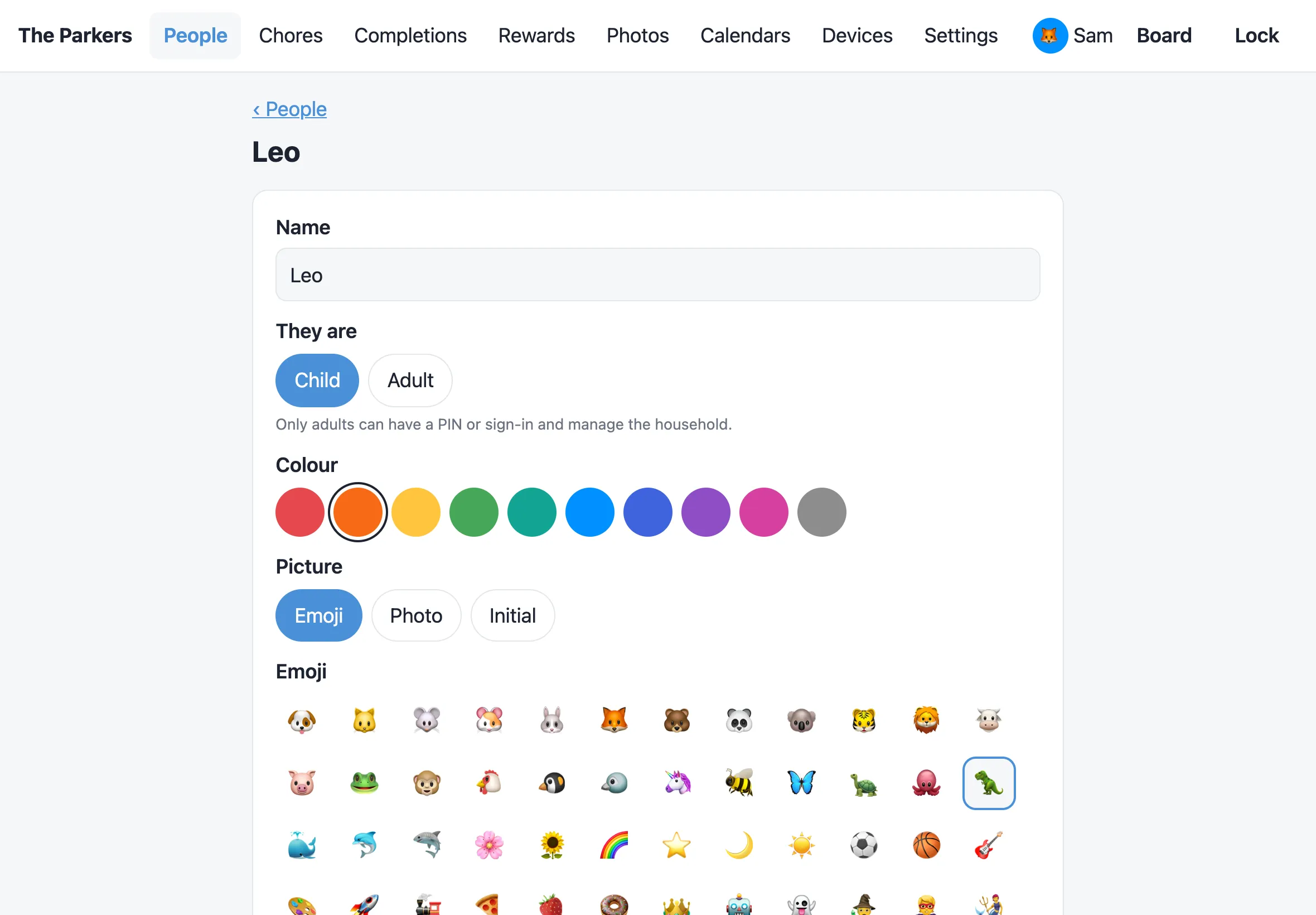
Each person has:
- A name, and whether they’re a child or an adult. Only adults can have a PIN or a sign-in, and manage the household.
- A colour, which their column, progress bar and ticks use on the board.
- A picture: an emoji, a photo (JPEG, PNG or GIF up to 8 MB, cropped to a square) or just their initial.
- Picture cards, for children only. Their column shows big emoji tiles instead of a list, for children who can’t read yet. See Picture cards.
- Saving for: a reward they’re saving up for, once you’ve added some rewards.
- An order on the board, lowest first.
Once you’ve saved an adult, their page has two more sections:
- PIN: unlocks admin on a household display.
- Sign-in: an email and password for managing Ingle from their own phone or computer.
Archive hides someone from the board. Their history and balance are kept, and you can restore them from the People list.
Adding chores
Section titled “Adding chores”Go to Admin › Chores › Add a chore.
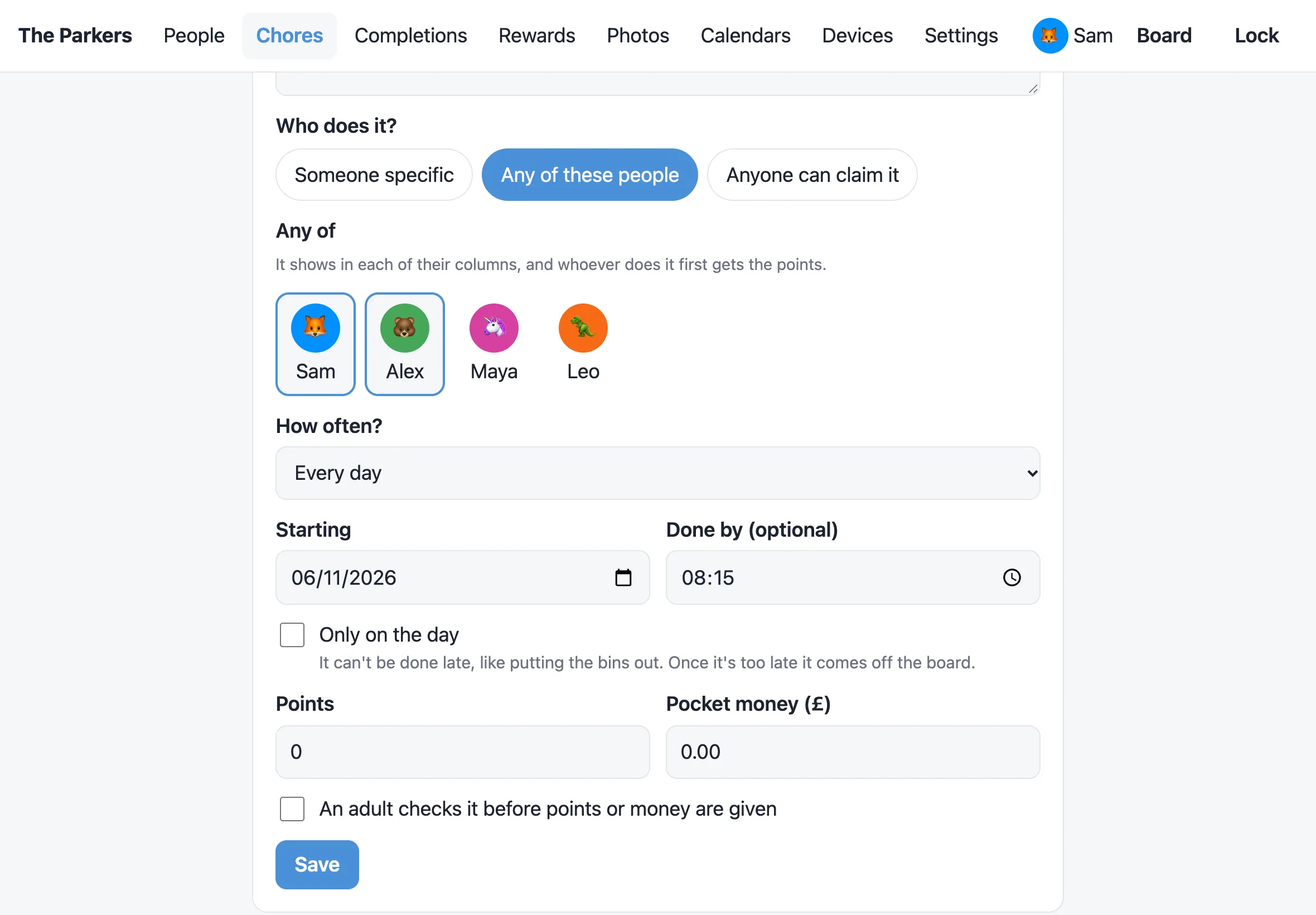
What needs doing? is the title on the board. Pick an emoji from the grid or type any emoji. As you type the title, Ingle suggests one (“Feed the dog” → 🐶).
Who does it?
- Someone specific: it shows in their column.
- Any of these people: tick two or more people, for jobs like “School run” that belong to both adults. It shows in each of their columns, and whoever ticks it off first gets the points. It’s then gone from the others’ columns.
- Anyone can claim it: it goes in Up for grabs at the top of the board, and anyone can claim it or just do it.
How often?
- Just once, on a date.
- Every day or Weekdays (Mon–Fri).
- Weekly or Every 2 weeks, on the days you tick.
- Monthly, on a day of the month, or the last day.
For a weekly, fortnightly or weekday chore, Which days? sets how often it’s due:
- Every day ticked: due on each of them.
- Any one of these days: due once that week, on whichever day suits. “Hoover the stairs, Tue or Thu” shows on both days, labelled “Today or Thu”, until someone does it. Its last day says Last chance.
The rest:
- Starting: the first day it’s due.
- Done by (optional): a time, such as 18:30. The card shows it.
- Only on the day: for chores that can’t be done late, like putting the bins out. Once its time has passed (or the day ends, without a time), it comes off the board as missed instead of staying up as overdue.
- Points and Pocket money (£): what it’s worth. Either can be 0, so a chore can be just a reminder.
- An adult checks it before points or money are given: the chore waits for a grown-up to approve it. See The board.
Archive removes a chore from upcoming days. Anything already done stays in the history.
The chores list
Section titled “The chores list”Admin › Chores lists every chore. The chips at the top show Everyone, one person, or Up for grabs, and the menu sorts by name, points or money. Filtering by a person includes the chores they share with others. Someone with no chores gets an Add a chore for… button with them already picked.
Next steps
Section titled “Next steps”- Hang the board on the wall: Installing on iPad.
- Add rewards to spend points on.
- Add family photos and calendars for the screensaver.
- Set the household unlock code and lock schedule.