
Screensaver
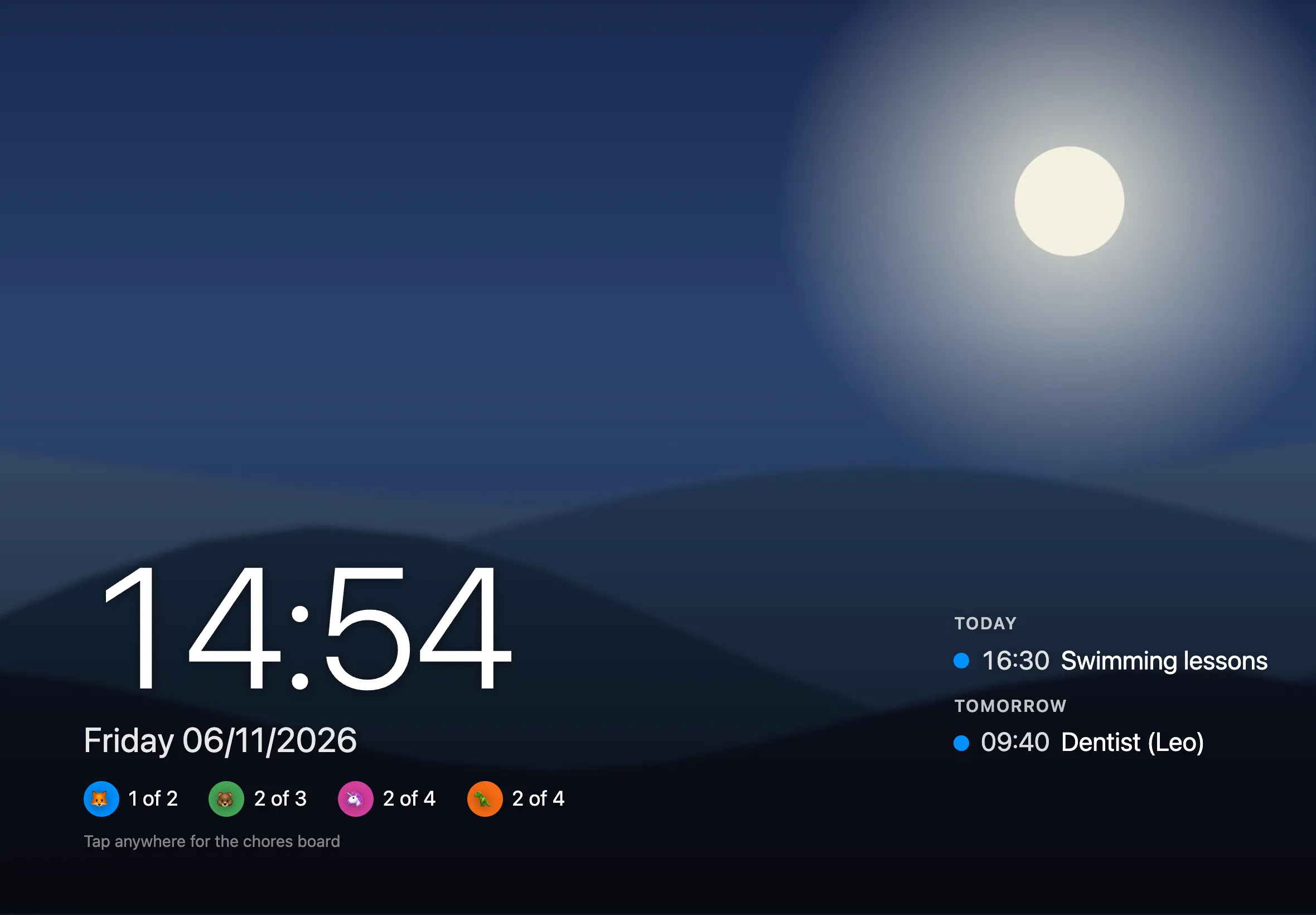
When a household display has been left alone for 5 minutes, it shows a screensaver. Family photos fade from one to the next, with the time and date, what’s on today and tomorrow from your calendars, and how everyone’s getting on with today’s chores.
- Tap anywhere to get the board back. That tap only wakes the screen, so nobody ticks off a chore by accident.
- The 🌙 button starts the screensaver straight away on any board, phones included.
- If admin is unlocked on the display, it locks before the screensaver starts.
- Change the delay with Show the screensaver on displays after in Admin › Settings. 0 turns it off, and the 🌙 button still works.
Photos
Section titled “Photos”Upload photos in Admin › Photos: JPEG, PNG or GIF, up to 20 MB each and 20 at a time. Photos from an iPhone are converted automatically. Without any photos, the screensaver shows just the clock.
On a self-hosted server, Ingle can also show photos from a folder, such as a NAS share. It only reads that folder, checks it for new photos every 10 minutes, and mixes them in with the uploaded ones. See The photos folder.
Calendars
Section titled “Calendars”Add a calendar in Admin › Calendars with a name and its secret iCal address:
- Google Calendar: on a computer, open Settings, choose the calendar, then Integrate calendar and copy Secret address in iCal format.
- iCloud: in the Calendar app, tap ⓘ next to the calendar, turn on Public Calendar and share the link.
- Outlook: Settings › Calendar › Shared calendars › Publish a calendar, then copy the ICS link.
Treat the address like a password: anyone with it can read the calendar. Ingle reads each calendar every 15 minutes (or straight away with Refresh now), and never shows the address again after you save it.
The same events appear in the board’s calendar.
Always on
Section titled “Always on”Set the iPad’s Settings › Display & Brightness › Auto-Lock to Never, so the screensaver stays up instead of the screen going dark. See Installing on iPad.